Step 1: Laying the Groundwork
From the Bottom Up
Knowing where I want to go, means I know exactly where I need to start. I’ve got the hardware, but it’s currently running EndeavourOS, and that’s not going to work for me. I want to run it on CentOS, and knowing I’ll be accessing it remotely, means I should be able to do a minimal install of CentOS on the hardware and attach my external storage as part of the file system.
The Process
My Goal here was to:
- Install CentOS 7
- Install Docker
- Test the docker install
- Install Docker Compose
- Test the basics to make sure Docker & Docker Compose were working as intended.
No plan survives contact with the
EnemyComputer
The Operating System
I had a whole stack of issues getting CentOS to work, everything from struggles with bad USB drives (maybe?) to the machine sleeping whenever it felt like it. I suspect most of those struggles were my own doing, nonetheless…off with it’s head!! As it were.
I did actually get CentOS kinda working, and I got docker installed, but I screwed up the install process and ended up installing the entire OS on my external drive, which was a not-good thing.
I ended up using Fedora Server1 instead of CentOS. The install process seemed to go more smoothly, perhaps because I’d fixed some of the bugs in my process, but whatever the reason may be, I currently have Fedora 32 installed on my laptop, which is hardwired2 to a dumb switch hanging off my router. Nifty. DHCP reservation with a name gives me pseudo-DNS access to my laptop, including the Fedora Server GUI, called “Cockpit” which I really didn’t know was a “thing”. Cockpit is pretty nice, but mostly useless for what I need, it works well and all, but I prefer the command line for most things, but I do like the pretty pictures and graphs it gives me.
When I re-installed Fedora for the (I think 7th) last time I managed to setup the drives the correct way.
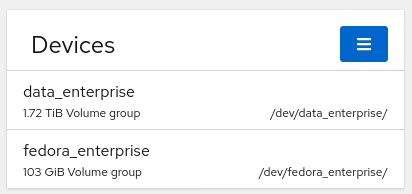
Volume Groups:
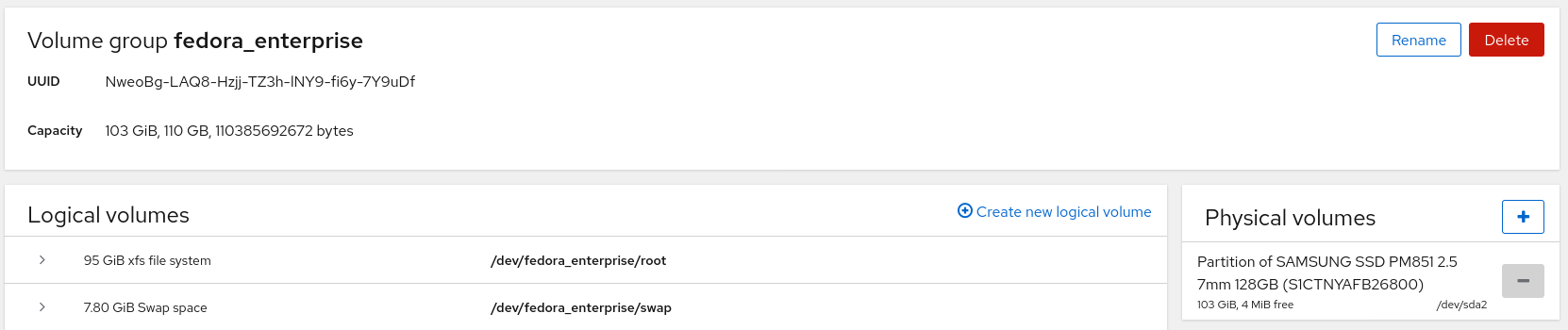
The Main OS Volume Group:
The Data Volume Group:
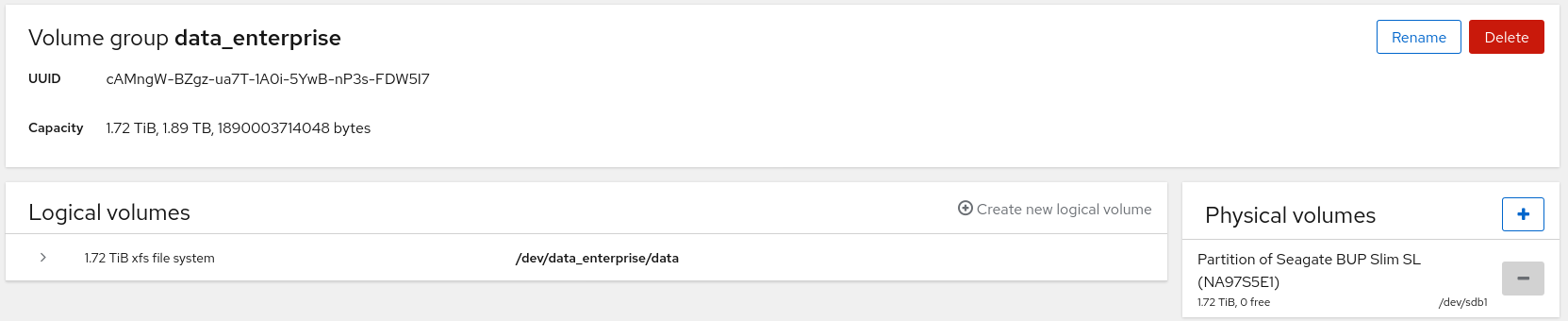
Note the pretty pictures from Cockpit. Ain’t they pretty?
I’ve got two VGs, one for the data, and another for the OS type files. In this case they are on separate physical drives. This should in theory allow me to expand if I need more storage by simply adding an additional drive(s), this should also allow the system to boot in the event something happens to the external drive, or it doesn’t mount right. The internal drive will host most of the crucial functions this server will be handling, while the external will be used for data storage, i.e. my NextCloud storage.
I also setup key-based authentication on my server to allow me to authenticate from my laptop to the
server without having to type in a password. While you can use the ssh-copy-id method, I
actually used the Fedora Server GUI for that, which worked like a champ, but I couldn’t find a way
to prevent password based SSH attempts in the GUI. Removing that was easy enough (see the command
reference I used in the references section. 3)
Docker!
Thankfully Docker provides a very solid install guide for installing the docker-engine4 unfortunately the base install process doesn’t quite work for Fedora 32. With some very very clever Google-fu, googling the error, led me to an open Bug report5, with an additional step needed to complete the install, once that was done:
sudo docker run hello-world

Hello from Docker!
This message shows that your installation appears to be working correctly.

To generate this message, Docker took the following steps:
 1. The Docker client contacted the Docker daemon.
 2. The Docker daemon pulled the "hello-world" image from the Docker Hub.
    (amd64)
 3. The Docker daemon created a new container from that image which runs the
    executable that produces the output you are currently reading.
 4. The Docker daemon streamed that output to the Docker client, which sent it
    to your terminal.

To try something more ambitious, you can run an Ubuntu container with:
 $ docker run -it ubuntu bash

Share images, automate workflows, and more with a free Docker ID:
 https://hub.docker.com/

For more examples and ideas, visit:
 https://docs.docker.com/get-started/
BOOM! Docker installed.
DNS Is a PITA

I had some issues around DNS when installing Docker, which took a long, convoluted path to fix, and I honestly don’t remember everything I did to get it working, I restarted Docker, and built (and later removed) a docker daemon.conf file, but it did work, right up until I tried to get Docker compose working. I want to put the fix here because I think it should fix DNS issues within Docker as well as Docker compose.
The short version is that in Fedora/RedHat/CentOS recent versions the OS uses nftables by default, instead of iptables; this allows for better support of IPv4 and IPv6 addresses and such. The issue is that docker doesn’t like nftbles, so that’s fun. It’s easily fixable by modifying a single line in the firewalld.conf file. Simply changing the line: FirewalldBackend=nftables to:
FirewalldBackend=iptables will fix the issue. The Bug report and fix can be found
here. Ideally that will be fixed in the future,
and it won’t be required.
Docker-Compose
Docker-compose is essentially a tool that simplifies the building of applications. While many applications run on a single server and serve a single function using just a convoluted collection bash script, python scripts, rust files, basic libraries etc. the vast majority of applications in the world use a lot of assorted components: a web server, a database, a script that pulls data from another source, etc. Compose is a simple way to bundle all of these things together to create multiple containers that all talk to each other to create a full fledge application, which can be started with just a single command.
Docker-compose is written and provided by the team that maintains Docker, and the documentation can be found in the same location ( Docker-compose getting started ) The documentation is very very solid, and provides everything needed to get up and running.
Aside from the aforementioned DNS issue, I really had no issues getting compose up and running.
Current state
- Installed
CentOS 7Fedora 32 - Installed Docker
- Tested the docker install
- Installed Docker Compose
- Tested the basics to make sure Docker & Docker Compose were working as intended.
All told this took me about 10-12 hours, mostly fighting with the CentOS install. I spread that out over a couple of weekends, and some evenings, mixed in with the other things life demands I do.
Next Steps:
- Install NextCloud
- Figure out how to actually effectively host NextCloud
- Sort out the reverse proxy methods, and if I actually need one or not. I expect that I will use traefik for a reverse proxy just because it looks pretty straightforward to learn, and it’s wildly popular.
Step 2
Resources
-
We’re not going to talk about wifi. OK? ↩
-
The tutorial I used can be found here but the short version is: Put the key file on the remote server, turn off password based authentication in the
/etc/ssh/sshd_configfile, and restart ssh. ↩ -
The issue stems from the fact that cgroups v2 isn’t supported by containerd 1.3 or lower. The fix recommended by the docker team can be found here ↩